
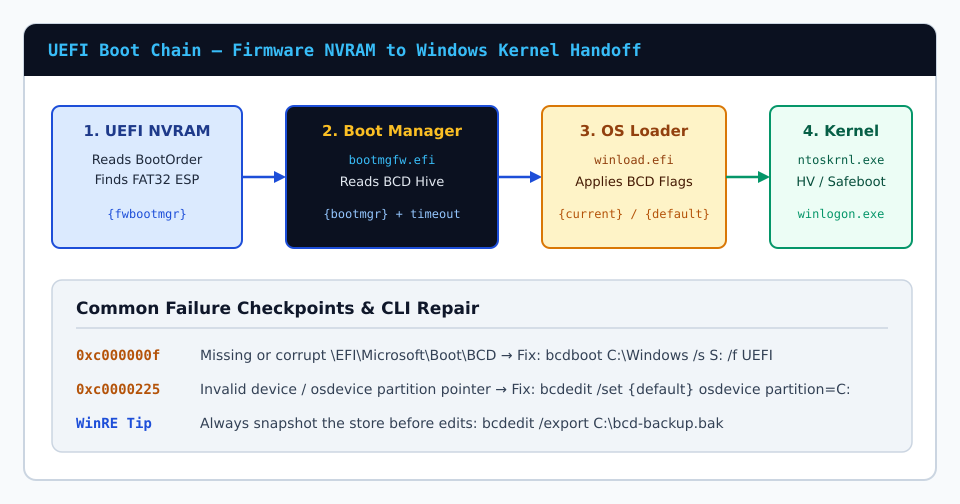
Blue Windows Recovery screens reporting 0xc000000f or 0xc0000225 almost never mean your Windows installation or personal files on C:\Users were erased. Instead, they pinpoint an exact handoff break between UEFI firmware (bootmgfw.efi), the BCD registry hive, and the target OS partition disk signature—most commonly right after cloning an SSD, resizing partitions, or updating BIOS firmware.
1. Distinguishing 0xc000000f vs. 0xc0000225
0xc000000f(STATUS_NO_SUCH_FILE / Boot selection failed): Windows Boot Manager cannot locate\EFI\Microsoft\Boot\BCDor a referenced boot loader file such aswinload.efi.0xc0000225(Required device isn’t connected / inaccessible): The BCD store exists, but cloning changed the GPT disk or partition GUID so thedeviceorosdevicefields displayunknown.0xc0000098(Valid OS info missing): The BCD hive file exists on the EFI partition, yet contains zero valid OS application entries or suffered write truncation.
2. Auditing Unknown Pointers Inside WinRE Command Prompt
Open Command Prompt inside WinRE and dump the store offline to confirm whether entries point to unknown instead of a real partition:
bcdedit /enum ALLLook closely at both Windows Boot Manager and Windows Boot Loader blocks. If device and osdevice read unknown while your Windows directory is visible under C:\Windows (verified via dir C:\Windows), rebind the default loader pointers directly:
bcdedit /set {bootmgr} device partition=S:
bcdedit /set {default} device partition=C:
bcdedit /set {default} osdevice partition=C:
3. Full Store Regeneration When Repairs Fail
If 0xc000000f or 0xc0000098 persists—or if a drive clone omitted the FAT32 EFI System Partition completely—mount the FAT32 System Partition as S: in diskpart, archive any damaged BCD hive, and recreate all UEFI boot files atomically:
diskpart
list vol
select vol <ESP_VOL_INDEX>
assign letter=S:
exit
bcdboot C:\Windows /s S: /f UEFI
Restart and verify UEFI firmware boot order inside BIOS/UEFI setup or via bcdedit /enum {fwbootmgr}.