
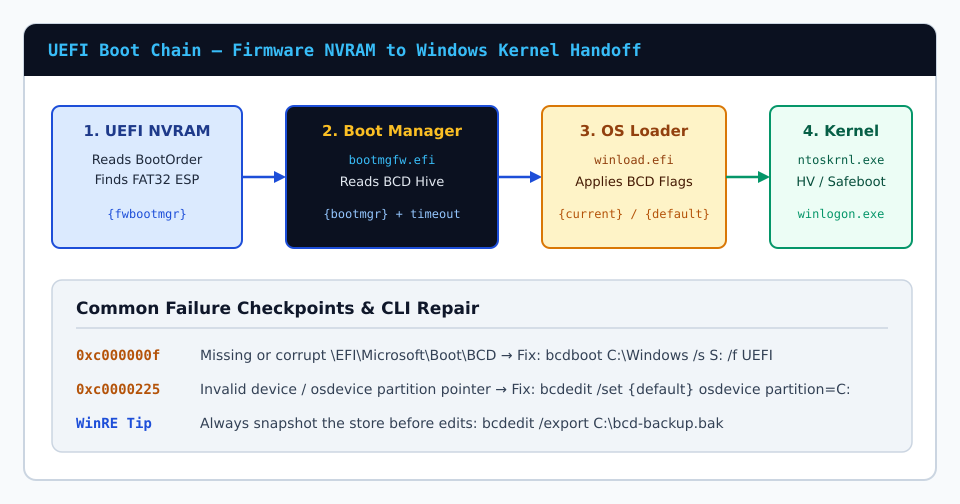
Administrators troubleshooting an unbootable NVMe drive frequently encounter frustrating tutorials advising bootrec /fixboot and bootrec /rebuildbcd. On modern UEFI/GPT Windows 10 and Windows 11 machines, those legacy MBR-era subcommands routinely return Access is denied or report Total identified Windows installations: 0 because UEFI firmware reads FAT32 EFI System Partition binaries rather than Partition Boot Records.
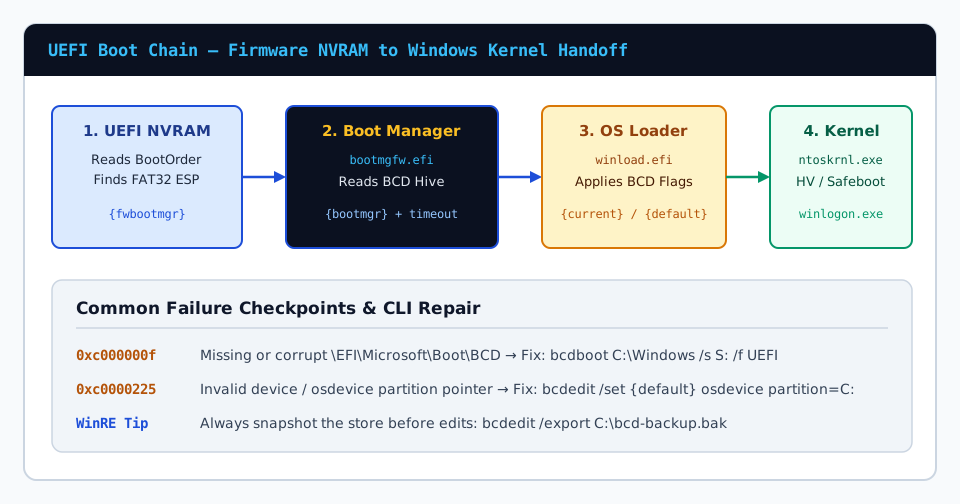
1. Why bcdboot Replaced bootrec for GPT EFI Recovery
Rather than scanning raw NTFS volume sectors like bootrec, bcdboot.exe pulls fresh, version-matched copies of bootmgfw.efi, boot fonts, localization resources, and the template BCD schema straight out of your installed \Windows\Boot\EFI directory and stamps them into the EFI System Partition.
2. Step-by-Step WinRE EFI Partition Mount & Rebuild
Boot from a Windows recovery USB or WinRE Command Prompt, launch diskpart, and assign a temporary drive letter (conventionally S:) to the 100 MB–260 MB FAT32 System Partition:
diskpart
list disk
select disk 0
list vol
select vol 2
assign letter=S:
exit
Confirm which drive letter holds your Windows OS directory (check with dir C:\Windows; adjust to D:\Windows if WinRE shifted letters), then regenerate all EFI boot files and create or update the BCD store:
bcdboot C:\Windows /s S: /f UEFIBacking Up a Corrupted BCD Store Before Regenerating
If bcdboot reports an existing damaged store or firmware entry conflict, inspect the hidden directory on S:, rename the corrupt hive out of the way, and re-run bcdboot cleanly:
attrib -s -h -r S:\EFI\Microsoft\Boot\BCD
ren S:\EFI\Microsoft\Boot\BCD BCD.old
bcdboot C:\Windows /s S: /f UEFI
3. Inspecting UEFI Firmware NVRAM Order Afterward
Immediately verify that {fwbootmgr} points to Windows Boot Manager and confirm the OS loader device and osdevice pointers are bound to valid partitions rather than unknown:
bcdedit /enum {fwbootmgr}
bcdedit /enum {current}
Finally reboot cleanly; UEFI firmware removes temporary drive letter S: automatically on restart so the FAT32 System Partition returns to its protected hidden state.