
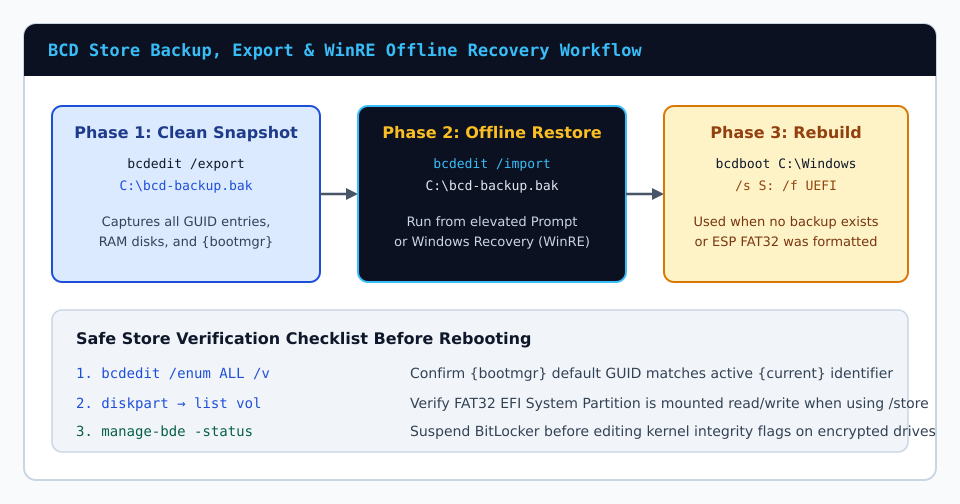
Every modification to Windows Boot Configuration Data (BCD) carries asymmetrical risk: a typo in a single device pointer or accidental deletion of the Boot Manager display order can halt startup before winload.efi initializes graphics drivers. Rather than editing registry-backed firmware objects without a net, systems engineers treat bcdedit /export as the mandatory first command before touching any flag, hypervisor toggle, or dual-boot entry.
1. Why Copying Raw BCD Files Fails While Windows Runs
On modern GPT/UEFI workstations, the active boot store lives inside a hidden FAT32 EFI System Partition at \EFI\Microsoft\Boot\BCD and is mounted into the running kernel registry namespace as HKLM\BCD00000000. Because the Windows kernel holds an exclusive lock on that hive file, naive file-copy utilities fail with sharing violations or capture inconsistent pages.
The built-in /export switch calls Windows Volume Shadow / hive flush primitives to write a transactionally clean binary archive outside the EFI partition:
bcdedit /enum ALL /v > C:\bcd-inventory.txt
bcdedit /export C:\bcd-backup.bak
Saving a human-readable /enum ALL /v text inventory alongside the binary .bak snapshot lets you compare GUID identifiers after Windows updates or storage driver migrations.
2. Restoring an Exported Hive From Elevated Windows or WinRE
If an experimental timeout change, kernel debugger switch, or partition clone disrupts normal startup, boot into Windows Recovery Environment (WinRE) via installation media or Automatic Repair and open the Command Prompt:
bcdedit /import C:\bcd-backup.bakVerifying Mounted Drive Letters Inside WinRE
Windows Recovery often reassigns volume letters in RAM disk environments—your normal OS volume might appear as D: or E: instead of C: while X: holds WinRE itself. Inspect actual letters before running /import:
diskpart
list vol
exit
If you saved bcd-backup.bak onto the OS NTFS partition (suppose list vol maps it to D:), invoke bcdedit /import D:\bcd-backup.bak and reboot cleanly.
3. Repairing Stores Without Existing Backups Using /createstore or bcdboot
When inheriting an unbootable host with no exported snapshot, create a staging store first or regenerate the EFI hierarchy via bcdboot:
- Staging an offline store: Run
bcdedit /createstore C:\Recovery\NewBCDand inspect it with/storeswitches without endangering live firmware boot entries. - Suspending BitLocker safely: Always verify
manage-bde -statusand suspend protectors before altering Secure Boot policies, integrity checks, or kernel debugging flags.
Summary Checklist Before Editing NVRAM
Run bcdedit /export C:\bcd-backup.bak, confirm the file exceeds zero bytes, record active default GUIDs with bcdedit /enum {bootmgr}, and clone an entry via /copy whenever testing unfamiliar kernel boot flags.